YouTube Essentials
Make the most of your YouTube experience
 Watch
Watch Discover
 Share
Share Personalize
 Upload
 Watch
Watch
Create an account
Sign up for a YouTube account, select your account settings, and start getting the most out of your YouTube experience.Learn more
Like
Enjoyed a video? Click "Like" beneath the video to let others know.
Comment
Respond to the video you just watched by adding a comment beneath the player. You can also rate the quality of other people's comments by clicking "Vote Up" or "Vote Down" to the right of the comment. The highest voted comments earn the top spot, right beneath the player.Learn more
Suggested videos
After watching a video on YouTube, click one of the videos in the Suggestions column on the right to view a related video.Click "Load More Subscriptions" at the bottom of the list for even more choices.
Video Player Sizes

Use the Pop-Out Window to watch the video in a new window.

Expand the video to make the player wider within your current browser.

Use the Full Screen mode to convert your entire computer screen into a video player for a TV-like viewing experience.
Rent a movie
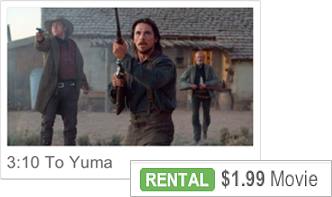
Rent full-length feature films straight from YouTube. Click "Rent" to begin. Make sure your YouTube account is upgraded to include your billing information; once you purchase the movie, you can view it on your computer while connected to the internet.Learn more
YouTube Mobile
Watch YouTube on the go. If you have a mobile phone with Internet access, visit m.youtube.com from your phone's internet browser. Bookmark YouTube Mobile on your phone to return to the mobile site easily.Learn more
YouTube Leanback
Leanback makes it easy to enjoy YouTube videos in your living room. All videos play in full screen at the highest quality, perfect for sharing on a Google TV or any big screen. Try it out at youtube.com/leanback.Learn more
Captions / Subtitles
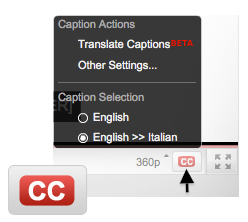
Hover your mouse over the red button in the bottom right corner of the video player to set the caption/subtitle options. Select the language for the subtitles under the Translate Captions option. YouTube will automatically translate the audio of the video and display it as subtitles, when available.Learn more
Watch in High Definition (HD)
To maximize your viewing experience, click the video format button in the lower right corner and select the 720p, 1080p or Original options to view in HD, when available.Learn more
Watch in 3D
To view videos on YouTube that are uploaded in 3D, select the 3D button at the bottom of the player. If you own a pair of 3D glasses, select the colors that work with your glasses. If you don't own a pair of glasses, choose the cross-eyed option, cross your eyes to align the two images into one, and the video should pop out at you in 3D.Learn more

 Discover
Search
Type a keyword, subject, or video title into the search bar. From the results page, click Search Options to view filters and narrow your results. Use Related Search options to refine your search.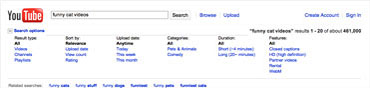
Charts
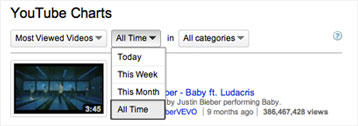
Check out the YouTube Charts page for a list of the top videos on YouTube. You can filter the chart by popularity, date range, and content category.Tip: Select All Time under the Date Range to view the top YouTube videos of all time.
Browse
If you don't know exactly what you're looking for, click Browse to see the most viewed videos in each category. See more videos in a specific category by clicking "Filter".Topics
When you search for a term, ("funny" for example), you will see other related topics tied to videos that you might want to explore. Click to get to videos on these topics. Or add a topic to your current search by clicking on the + sign that shows when you hover over it. Each new topic you click will give you new results to explore. Check out Topics on TestTube.Trending Terms
The tag cloud at the bottom of a category page shows the popular keywords that people are searching for at the moment. Like other tag clouds, the size of the keywords in the box indicates their popularity. Click on one of these keywords to view relevant search results.
Subscribe
Found a video you really like? Subscribe to the person's YouTube channel: just click the "Subscribe" button above the video or on their channel. Their latest videos and recent shared activity will be automatically delivered to your homepage, so you can stay up-to-date on everything they're doing.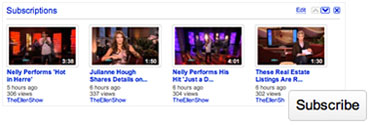
Recommended for You
The Recommended for You module on the homepage suggests videos you might like based on your previous viewing history. To see your viewing history, click on the History link at the top right of the page; click "Clear Viewing History" to refresh your recommended videos list.Tip: Log in to your YouTube account to get better, more specific recommendations. Click here to sign up for a YouTube account.
 Share
Share
Share
Share a YouTube video with your friends via email, social networks, or blog directly from the video page. Just click the Share button underneath the video.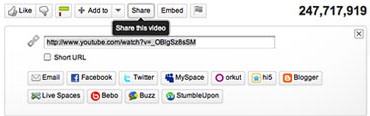
Embed
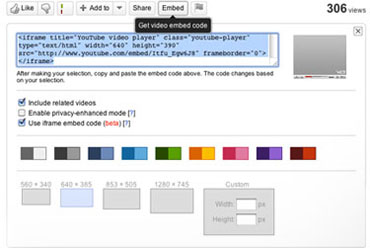
YouTube provides you with the code to add videos to any website or blog (as long as the video owner has embeds enabled). Click "Embed" to see all your color and size options; then just copy and paste the code into the HTML on your site or blog.Learn more
Autoshare
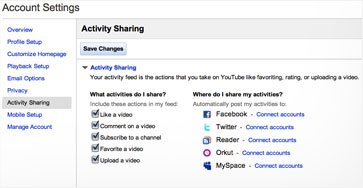
Automatically share your favorite YouTube videos and YouTube activity with your friends on your social networks. Link your YouTube account with your Twitter, Facebook, MySpace, Orkut, and Google Reader accounts and choose which YouTube activities you'd like to share with your friends.Learn more
 Personalize
Channels
Your channel is your home for broadcasting on YouTube. It's the place to house the videos you make ("Uploads"), the videos you love ("Favorites"), and the videos you've organized ("Playlists"). Personalize your channel by selecting the background color, formatting and module options.Learn more
Favorite
When you find a video you like, add it your favorites. This will bookmark that video in your account so you can return to it easily for repeat viewing. Note that people subscribed to your channel can also view your Favorite videos.Learn more
Manage your subscriptions
Change your notification preferences by clicking "Edit Subscription" above videos on channels to which you are subscribed. Manage and view all your subscriptions under your YouTube Account tab.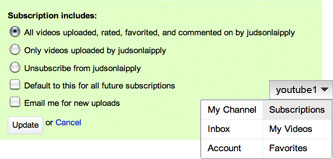
Build your Queue
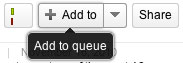
As you find more videos that you like, click "Add to" beneath the player. The video will be added to a queue at the bottom of the screen, so you can keep track of the videos that you want to watch later. Collect several videos in your queue, turn on autoplay, and watch continuously.Learn more
Homepage
Customize your YouTube homepage with your favorite modules.Create a Playlist
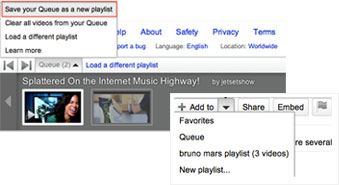
Add individual videos to a playlist or create a new playlist by clicking the arrow next to the "Add to" button beneath the video. You can also easily convert your queue into a playlist and save it in your account so you can return to it later or share it with friends.Learn more
 Upload
Video Editor
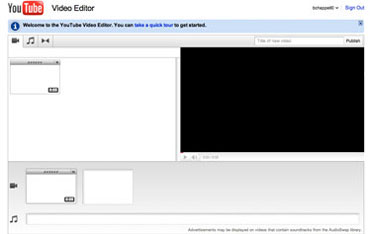
Edit your videos right in YouTube - no software downloads required! Combine your video clips, trim the length of your video, add music using AudioSwap, and add transitions between video clips. Once you are happy with your video, upload it to your YouTube channel and share with your friends.Learn more
Audioswap
Use AudioSwap in the video editor to add music to your videos, for free.Learn more
Description
The video description is a key piece of information used to identify the content of your video. The more accurate the information you provide in the description section, the easier it will be for users to find your video.Annotations
Annotations let you add text links to your videos; link to other videos, channels and playlists, or even create interlinked video narratives. You control what the annotations say and when and where they appear on the video.Learn more
Insight
Visit the insights tab in your account to learn about the demographics of your viewers and other information about your audience. Use this information to better target the people already watching your videos or to understand which audiences to develop.Learn more
Uploading in HD
Upload your video in a High Definition format. YouTube currently offers three options: 720p,1080p, and most recently, 4K ("Original") resolution. To give some perspective on the size of 4K, the ideal screen size for a 4K video is 25 feet!Learn more
Uploading in 3D
Use two cameras arranged like a pair of eyes and record on both cameras simultaneously. Then, in your video editing program, place the footage for the left and right eyes together in the frame side by side, with the right eye on the left and the left eye on the right. Once you're done, upload your video and edit your video tags to include the "yt3d:enable=true" tag. This tag will automatically add a 3D menu to your video.Learn more
Private sharing and unlisted videos
When you upload a video, you can choose whether you want to share the video publicly, privately, or mark it as "unlisted". By sharing privately, you can invite up to 25 of your YouTube friends to watch, so you control exactly who views the video. By marking your video as unlisted, anyone with the link to the video can watch it, whether or not they have a YouTube account.Learn more
Promoted videos
Use Promoted Videos to attract viewers, subscribers and customers by displaying your video ad next to relevant search results and related videos.Learn more


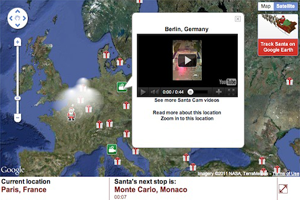 It's easy to display YouTube videos on your site and customize the player -- using the
 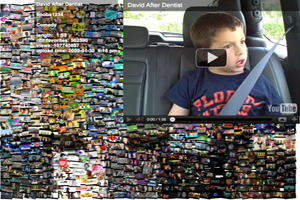 From the most popular videos feed to the top rated, YouTube Data APIs provide many
 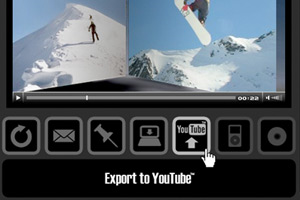 Use the YouTube Data APIs to upload videos directly. We have


